
Welcome to CoreFlow
CoreFlow brings the parts of your business, customers, scheduling, your team, inventory, and billing, into one calm, connected workspace. Instead of switching between a calendar, a spreadsheet, and a separate invoicing tool, you'll do it all in one place.
The Home Dashboard is where every day begins. It gives you a clear picture of what's happening right now and what needs your attention, before you go anywhere else. This guide uses a sample business, Riverside Wellness Group, so you can follow along with realistic examples.
Signing in
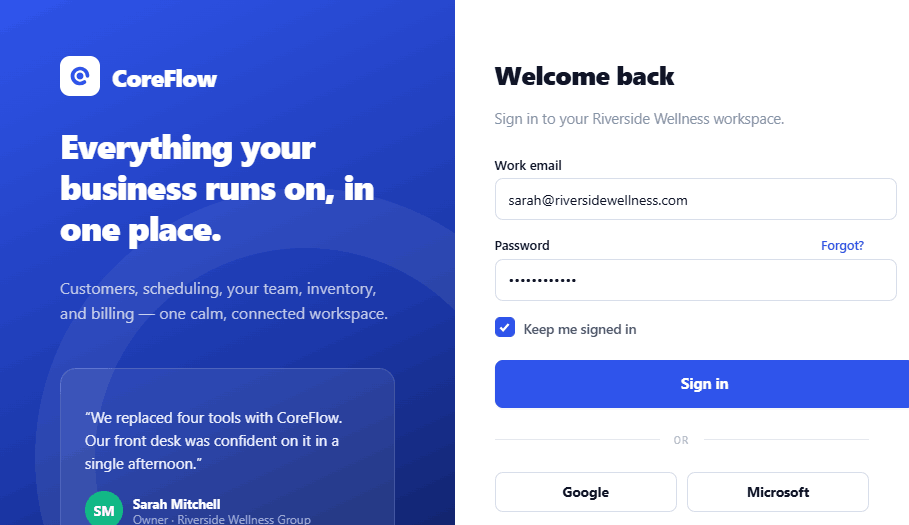
You'll receive an email invitation with a link to your workspace. From there, signing in takes a few seconds.
- Go to your workspace web address, or click the link in your invitation email.
- Enter your work email and password.
- Leave Keep me signed in checked on your own device so you don't have to sign in each day.
- Click Sign in and CoreFlow opens straight to your Home Dashboard.
A tour of the Home Dashboard
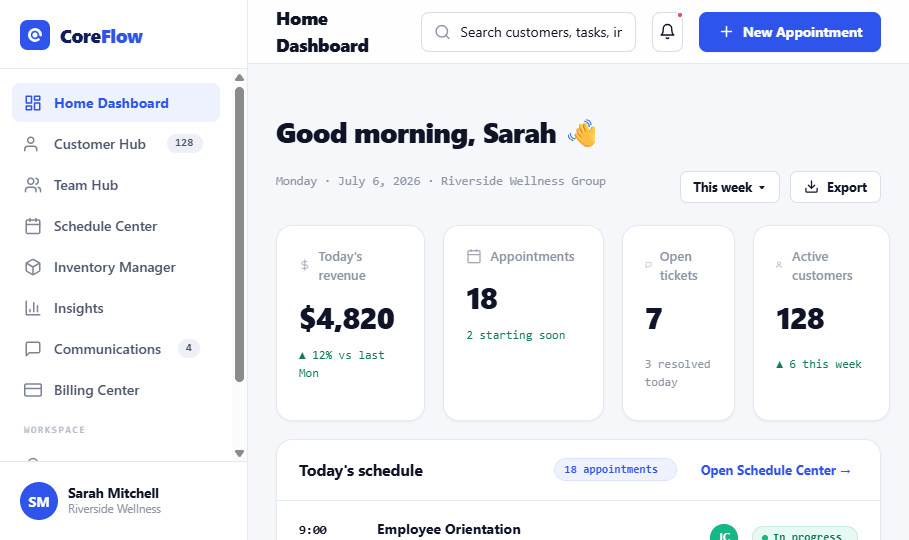
When you sign in, the Home Dashboard greets you by name and lays out your day. Everything is organized into five areas, take a moment to get familiar with each one.
 1
2
3
4
5
1
2
3
4
5
Reading your key numbers
The four cards near the top of the dashboard give you an instant read on the day. Each shows a number and how it compares to a recent point in time.
- Today's revenue, money taken so far today, with the change versus the same day last week.
- Appointments, how many are booked today, and how many are starting soon.
- Open tickets, support requests that still need attention.
- Active customers, your current customer count and recent growth.
Today's schedule
Below your key numbers, Today's schedule lists every appointment for the day in order. Each row shows the time, what it's for, which customer it's with, who's assigned, and its current status.
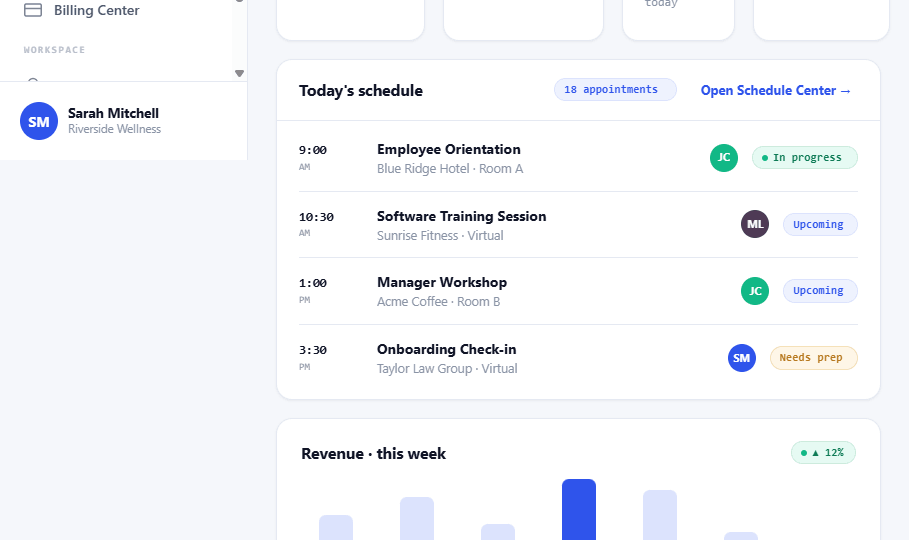
Status badges tell you where each appointment stands: In progress, Upcoming, or Needs prep. To see the full calendar, click Open Schedule Center → at the top of the card.
Working with tasks
The Upcoming tasks card keeps your to-dos in one place. Tasks come from across CoreFlow, a billing review, a schedule approval, a supply reorder, so nothing slips through.
- Find the task you've finished in the Upcoming tasks card.
- Click the checkbox to its left. The task is marked Done and moves out of your way.
- Click View all to see every open task, not just today's.
Quick actions & recent activity
On the right, Quick actions give you one-click shortcuts to the things you do most: add a customer, book an appointment, create an invoice, or send a message. You don't need to open the full module first.
Below that, Recent activity shows what's happened across your workspace, who completed what, who joined, and which invoices were paid, so you're always in the loop.
Tips & best practices
- Start your day here. Glance at your key numbers and Needs prep appointments before anything else.
- Use search. The fastest way to any customer or invoice is the Search… box in the top bar, no need to hunt through menus.
- Keep tasks current. Check tasks off as you go so your team always sees an accurate picture.
- Explore from the sidebar. Each module has its own guide in this series, start with the Dashboard, then branch out.