Screen recording of the CoreFlow Home Dashboard, signed in as Sarah Mitchell at Riverside Wellness. 1080p, cursor highlighted, gentle zoom on each element as it’s named. Soft background music at −18 dB under voiceover. On-screen callout labels match the End User Guide’s numbered areas.
1Cold open & welcome0:00 – 0:15
On screen
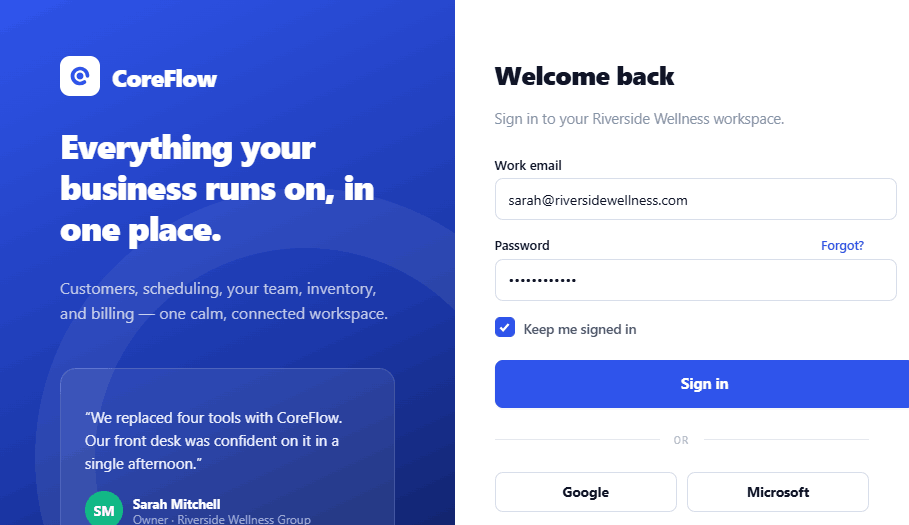
Open on the sign-in screen. Cursor enters email, clicks Sign in; the dashboard loads.
Voiceover
“Welcome to CoreFlow. In the next couple of minutes, we’ll walk through the Home Dashboard, the screen you’ll see every time you sign in, and the best place to start your day.”
2The big picture0:15 – 0:45
On screen
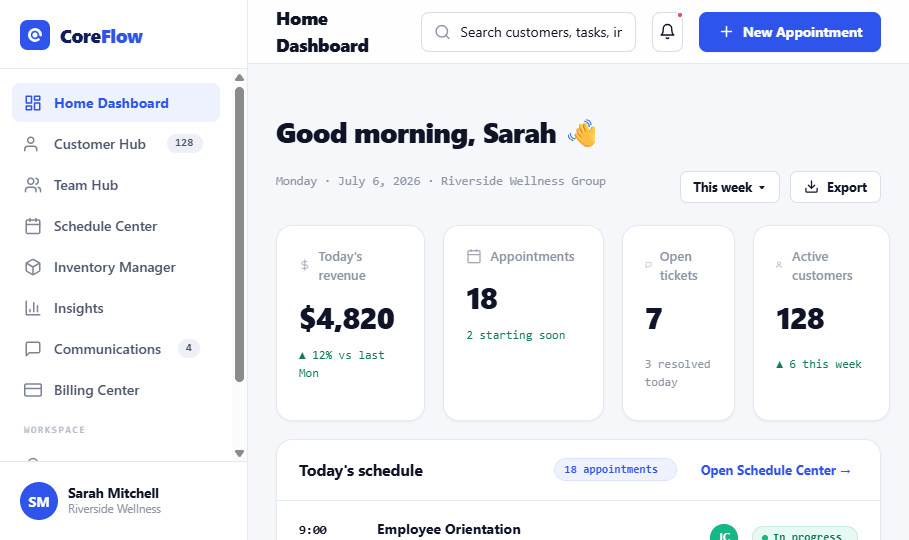
Full dashboard. Callout labels fade in over the five areas, sidebar, top bar, greeting, key numbers, schedule.
Voiceover
“The dashboard has five parts. On the left, the sidebar takes you to any area of CoreFlow. Across the top is search. In the center, a greeting, your key numbers, and today’s schedule. Let’s look at each.”
3Key numbers0:45 – 1:15
On screen
Zoom to the four stat cards. Highlight the green ▲ on revenue.
Voiceover
“These four cards summarize your day: revenue, appointments, open tickets, and active customers. A green arrow means a number is up compared to before, an easy way to see how today’s going.”
4Schedule & tasks1:15 – 1:55
On screen
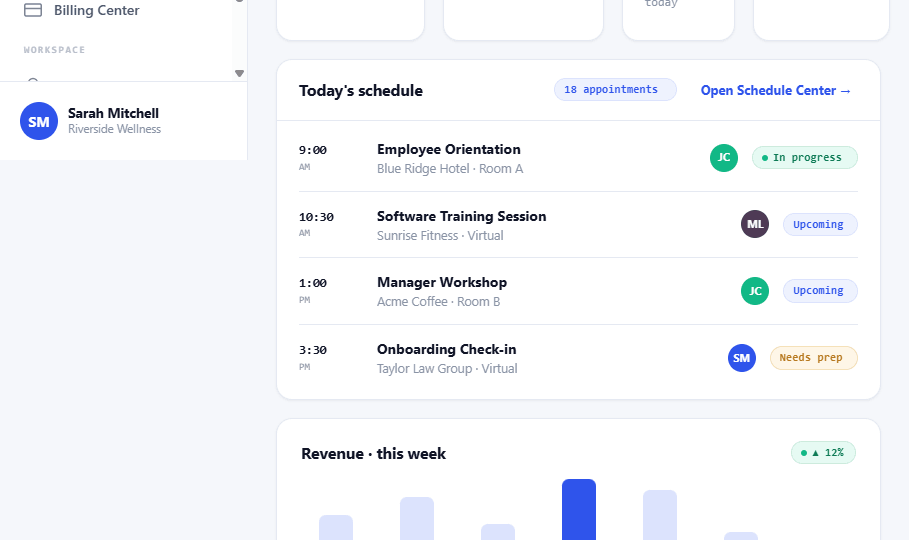
Pan to Today’s schedule, then Upcoming tasks. Cursor clicks a checkbox; the task marks Done.
Voiceover
“Today’s schedule lists every appointment, with its status. Watch for Needs prep. And in Upcoming tasks, just click the checkbox when something’s done, it updates for your whole team.”
5Wrap & next steps1:55 – 2:30
On screen
Zoom out to the full dashboard. End card: CoreFlow mark + “Quick Reference Guide available” + Prepared by The Training Desk.
Voiceover
“That’s your Home Dashboard. Start here each day, and you’ll always know what needs your attention. For a printable summary, grab the Quick Reference Guide, and enjoy using CoreFlow.”
CoreFlow · Video Script v1.0Prepared by The Training DeskFictional · for demonstration